
- Description
- Indicator Settings
Description
The best swing points for the Quasimodo or Over and Under chart pattern are automatically scan by the Quasimodo Indicator MT4. Additionally, the indicator can automatically adjust the technique to consistently identify the optimal trading conditions. Additionally, the result panel shows the historical performance of the trading signals with the specified take-profit and stop-loss. Forex traders are therefore able to recognize the trend and make automatic purchases and sales.
In point of fact, the indication provides consistent input settings and makes it easier for experienced forex traders to make effective use of the indicator. The A, B, C, and D pattern, on the other hand, can be follow by novice traders, who can then place trades base on the signals. In addition, the indicator can be download for free and achieves satisfactory results across all chart time periods.
Trading Signals for Quasimodo Indicator MT4
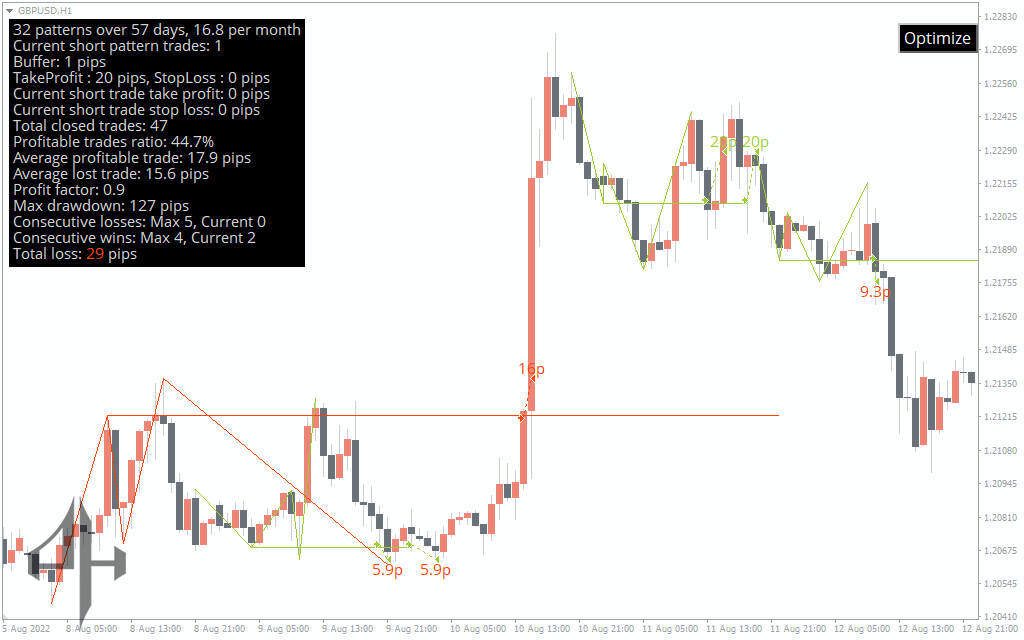
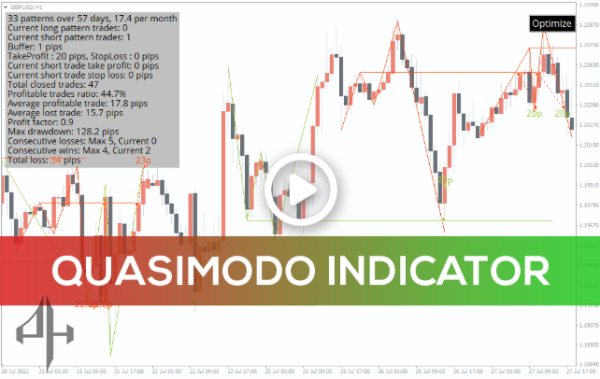
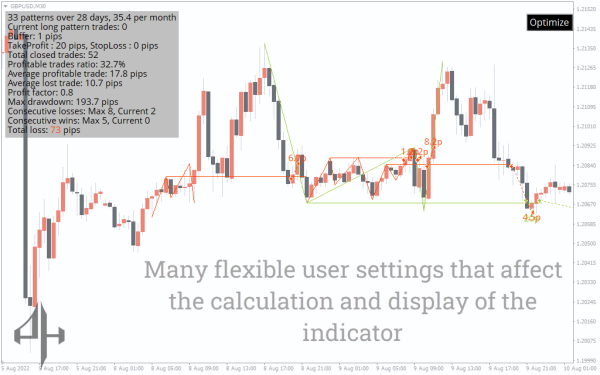
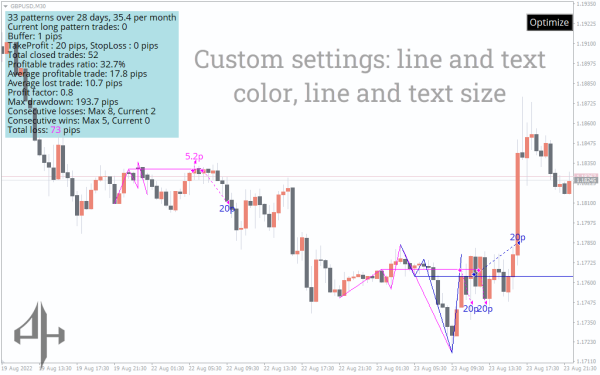
The Quasimodo MT4 indicator is display in action in the GBPUSD H1 chart above. The display screen, in particular, provides comprehensive statistics about previous virtual trades of this pattern. For any desired currency pair and time frame, forex traders can therefore optimize to find the optimal parameters.
Following the transmission of trading signals in the form of alerts, traders are able to participate in either buying or selling. The points at which the take-profit and stop-loss orders are place are likewise determine automatically. Because of this, traders are able to easily follow them and make adjustments to their trading.
Conclusion
To summarize, foreign exchange traders who are interested in utilizing the Quasimodo pattern for buying and selling will find the Quasimodo MT4 indicator to be a helpful component of their trading strategy. The ability of the indication to automatically search for setups and adjust them in order to get the best possible trading outcomes is, however, the most advantageous aspect of the indicator.
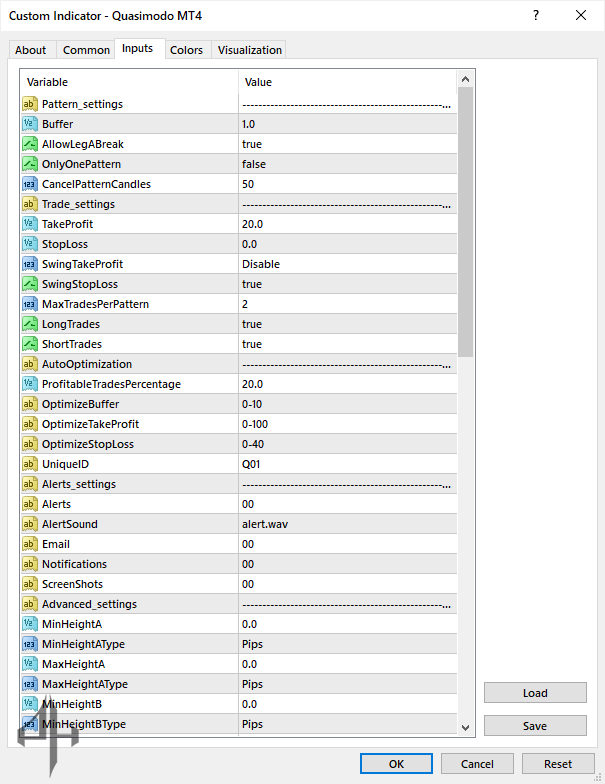
Buffer: Distance in pips from support or resistance lines to trigger a trade.
AllowLegABreak: Allows pattern validation even if the price breaks the starting point of leg A.
OnlyOnePattern: Enables or disables simultaneous trading of both long and short patterns.
CancelPatternCandles: Maximum number of candles allowed after the completion of leg D before canceling the pattern.
TakeProfit: Take profit value in pips.
StopLoss: Stop loss value in pips.
SwingTakeProfit: Sets take profit at the most recent swing point.
SwingStopLoss: Sets stop loss at the recent high or low swing point.
MaxTradesPerPattern: Maximum number of trades allowed each time the level is reached.
LongTrades: Enables buy trades.
ShortTrades: Enables sell trades.
ProfitableTradesPercentage: Minimum percentage of profitable trades required for optimization.
OptimizeBuffer: Defines minimum and maximum values for buffer optimization.
OptimizeTakeProfit: Minimum and maximum values for take profit target optimization.
OptimizeStopLoss: Minimum and maximum values for stop loss target optimization.
UniqueID: Unique identifier assigned to each saved optimization file.
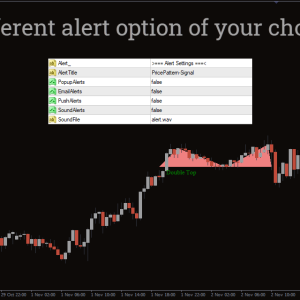
Alerts: Alert settings:
-
0: Alerts disabled
-
1: Alert on trade open
-
2: Alert on trade close
-
3: Alert on both open and close
For the second digit: -
0: Alerts disabled
-
1: Alert when pattern forms
AlertSound: Select sound file for alerts.
Email: Sends alerts via email.
Notifications: Sends alerts to mobile devices.
ScreenShots: Saves screenshots to a specified folder.
MinHeightA: Minimum height required for leg A.
MinHeightAType: Unit for MinHeightA in pips.
MaxHeightA: Maximum height allowed for leg A.
MaxHeightAType: Unit for MaxHeightA in pips.
Similar height settings apply for Legs B, C, and D.
MinCandlesA: Minimum candle count required for leg A.
MaxCandlesA: Maximum candle count allowed for leg A.
Similar candle count settings apply for Legs B, C, and D.
PastBars: Number of historical bars to consider.
ShowVirtualTrades: Enables the display of virtual trades.
TradeFontSize: Font size used in trade displays.
ShowLegsLines: Displays lines for the legs of the pattern.
ShowSwingPointsPrice: Shows the price at swing points.
SwingPointsPriceColor: Color of the swing point price text.
SwingPointsPriceSize: Font size for swing point prices.
ShowOptimizeButton: Displays the optimize button on the chart.
ShowDisplayPanel: Toggles the visibility of the display panel.
DisplayPanelFontSize: Font size used in the display panel.
DisplayPanelFontColor: Font color used in the display panel.
DisplayPanelBGColor: Background color of the display panel.
DisplayPanelFGCorner: Foreground color of the display panel corners.
FontsType: Font style used.
BuyColour: Color representing buy trades.
SellColour: Color representing sell trades.
ChartBGColor: Chart background color.
ChartFGColor: Chart foreground color.
ChartUPColor: Color representing upward chart movement.
ChartDownColor: Color representing downward chart movement.
CandleBullColor: Color of bullish candles.
CandleBearColor: Color of bearish candles.
ChartGridColor: Color of the chart grid.
ChartLineGraph: Color of the line graph on the chart.